

Google Chrome is known for its speed, simplicity, and extensive range of features, but not all of its capabilities are readily accessible to users. Hidden within Chrome is a treasure trove of experimental features that can enhance your browsing experience, enable new functionality, and improve performance. These features are available through the chrome://flags settings page, a section of Chrome that allows users to enable or disable experimental features and settings.
In this article, we will dive deep into what chrome://flags is, how to access it, and explore some of the most useful flags you can enable to supercharge your Chrome experience. We’ll also touch on the potential risks involved in using these features and how to safely experiment with them.
Contents
What is chrome://flags?
chrome://flags is a special page in Google Chrome that gives you access to a wide array of experimental features. These features are often still in development and are not yet stable enough to be included in the main release of Chrome. However, they can offer exciting new capabilities and improvements that are worth exploring.
It’s important to note that while many flags can enhance your browsing experience, some may cause instability or unexpected behavior. For this reason, it’s advisable to enable flags with caution and be prepared to disable them if issues arise.
How to Access chrome://flags
Accessing the chrome://flags page is straightforward:
- Open Chrome: Launch the Google Chrome browser on your desktop or mobile device.
- Enter the URL: In the address bar, type
chrome://flagsand press Enter. - Explore the Flags: You’ll be taken to a page with a long list of available flags. Each flag has a description of what it does, and you can enable or disable it using the dropdown menu next to each one.
Once you’ve made your changes, you’ll typically need to restart Chrome for the changes to take effect. Chrome will prompt you to relaunch the browser after enabling or disabling a flag.
Top Chrome Flags to Enable
Here are some of the most useful Chrome flags you can enable to enhance your browsing experience:
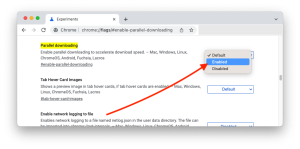
1. Parallel Downloading
- Flag:
#enable-parallel-downloading - Description: This flag speeds up file downloads by breaking them into smaller chunks and downloading them simultaneously. This is particularly useful for large files and slow connections.
- How to Enable: Search for “Parallel downloading” in the
chrome://flagspage and set it to “Enabled.”
2. Smooth Scrolling
- Flag:
#smooth-scrolling - Description: If you find that scrolling through web pages isn’t as smooth as you’d like, enabling this flag can make the experience much more fluid. It’s particularly helpful for users with high-resolution monitors.
- How to Enable: Search for “Smooth scrolling” and enable the flag.
3. Tab Groups
- Flag:
#tab-groups - Description: This flag allows you to group tabs together for better organization. It’s a fantastic feature if you often work with multiple tabs and need a way to keep them organized.
- How to Enable: Search for “Tab Groups” and enable it.
4. GPU Rasterization
- Flag:
#enable-gpu-rasterization - Description: This flag offloads some of the graphical processing tasks to your computer’s GPU rather than relying solely on the CPU. The result is smoother animations, faster page loads, and reduced lag when browsing graphically intensive websites.
- How to Enable: Search for “GPU Rasterization” and enable it.
5. Experimental QUIC Protocol
- Flag:
#enable-quic - Description: QUIC (Quick UDP Internet Connections) is a protocol developed by Google that aims to reduce latency and improve the overall performance of web connections. Enabling this flag can make your browsing faster, especially on slow or unstable networks.
- How to Enable: Search for “Experimental QUIC Protocol” and enable it.
6. Lazy Image Loading
- Flag:
#enable-lazy-image-loading - Description: This flag delays the loading of images on a page until they are about to be viewed. This reduces initial page load times and saves bandwidth.
- How to Enable: Search for “Lazy Image Loading” and enable it.
7. Reader Mode
- Flag:
#enable-reader-mode - Description: This flag adds a “Reader Mode” button to the Chrome toolbar, allowing you to strip away clutter from articles and focus on the text. It’s ideal for a distraction-free reading experience.
- How to Enable: Search for “Reader Mode” and enable it.
Safety and Risks of Using Chrome Flags
While chrome://flags offers a plethora of exciting features, it’s essential to be aware of the potential risks involved. Since these features are experimental, they may not be fully stable. Here are some considerations:
- Instability: Enabling certain flags can cause Chrome to behave unexpectedly, leading to crashes or reduced performance.
- Compatibility Issues: Some flags may conflict with extensions or other features, causing functionality issues.
- Security Risks: Although rare, some flags could introduce security vulnerabilities by enabling features that have not been fully tested.
- Resetting Flags: If you encounter issues, you can always reset all flags to their default settings by clicking the “Reset all” button at the top of the
chrome://flagspage.
How to Manage and Reset Flags
If you’ve enabled multiple flags and are experiencing problems, it’s easy to manage or reset them:
- Disable a Flag: Simply return to the
chrome://flagspage, find the flag, and set it to “Disabled.” - Reset All Flags: At the top of the
chrome://flagspage, you’ll find a “Reset all” button that restores all flags to their default state.
Conclusion
The chrome://flags settings page is a powerful tool for users who want to explore beyond the standard Chrome features. Whether you’re looking to speed up downloads, improve your browsing experience, or test new capabilities, there’s a wealth of options available. However, with great power comes great responsibility—remember that these features are experimental and can impact your browser’s stability. Proceed with caution, and enjoy experimenting with Chrome’s hidden features!